
New to KotNote? Start with the step-by-step tutorial and three short walkthrough videos, or read the tutorial in Finnish. Then return here to explore the full feature set.
A thought becomes a note. That note might later belong on a calendar, in a project plan, beside a sketch, or inside a diagram. KotNote brings those ways of working into one personal information workspace. You can write, collect, connect, plan and revisit information without rebuilding it every time you change views.
This illustrated tour covers KotNote’s main features, available on the web and Windows. The screenshots were captured from release 0.6.79 using fictional workshop information in the actual app interface. Click any screenshot to inspect the full-size image.
Explore the guide
Home: a starting point for your day
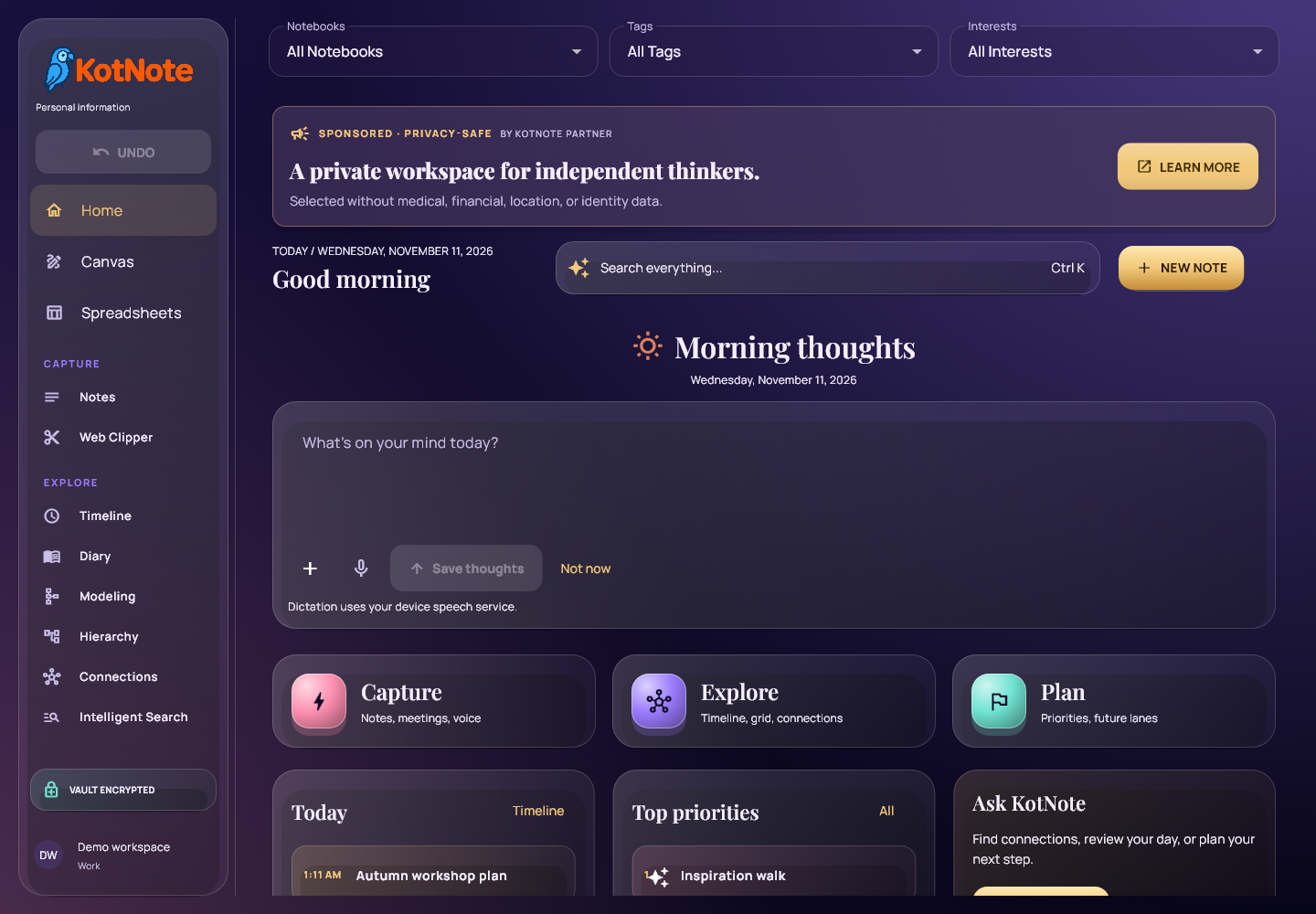
Home brings together your daily overview, recent information, priorities and quick routes to Capture, Explore and Plan. Start a note, search your collection, or return to something you were working on. The navigation keeps the main workspaces close at hand, with the shared Undo control directly below the KotNote logo.
Capture today’s thoughts
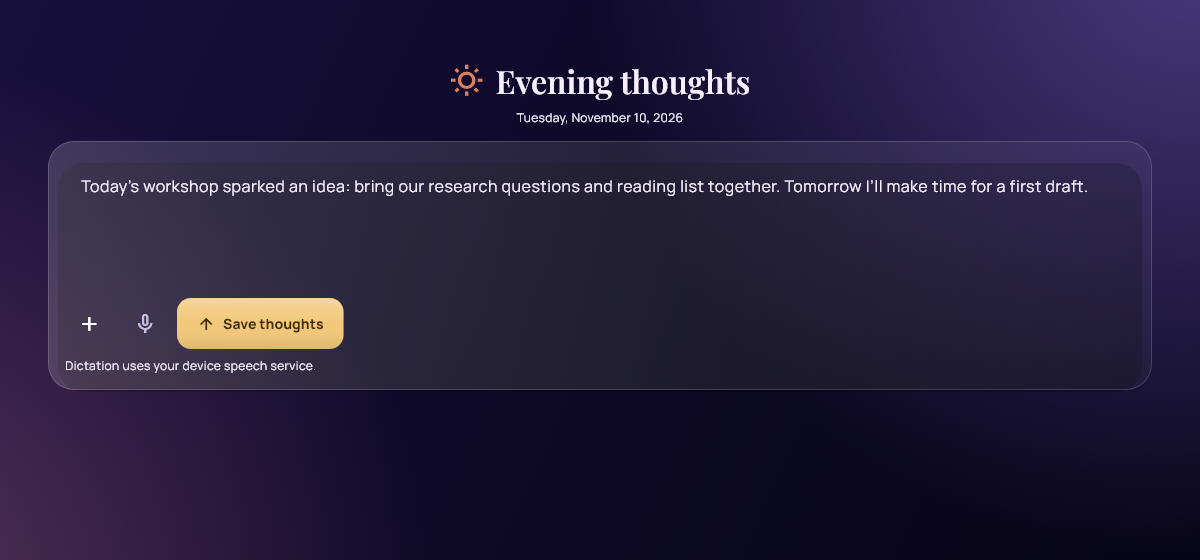
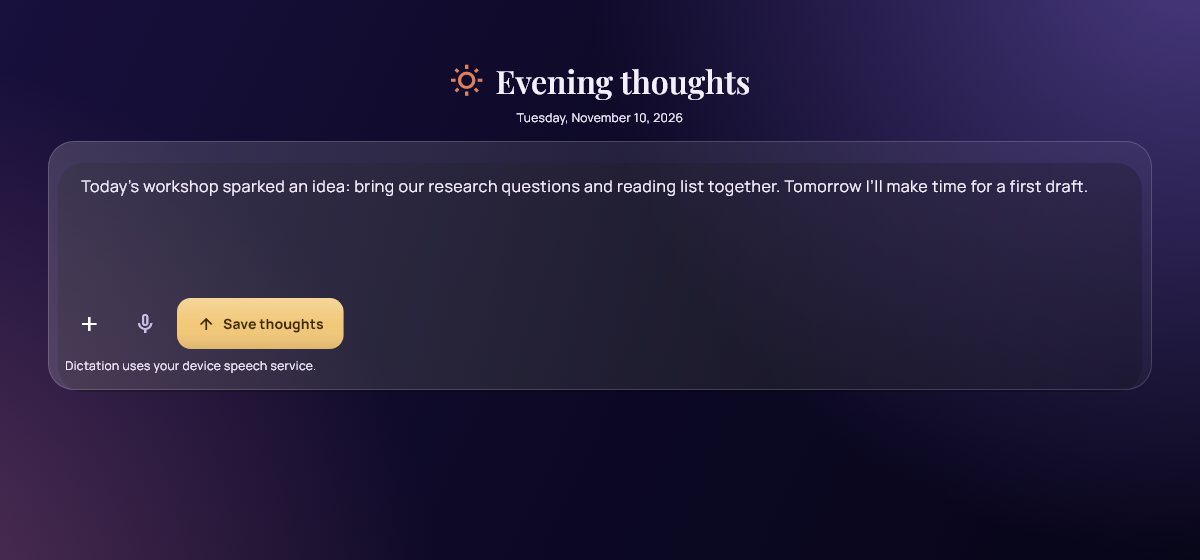
The daily thoughts composer asks what is on your mind, with a greeting that follows the time of day. Write a quick reflection, an idea or a plan, then save it as a dated note. Your unfinished thought can be restored when you return. On supported browsers and devices, dictation offers another way to enter text. Saving is your choice; typing a thought does not automatically send it to an AI service.
Notes that stay useful as your collection grows
A KotNote node is a saved item of information. Notes are one familiar way to create and edit those items. Write with Markdown and formatting controls, switch to a preview, add images or attachments, and keep the source URL alongside your text. Each item can carry a title, summary, description, date, Interest, icon, priority and tags.
When creating a note, Content comes first so you can write immediately. KotNote can derive a starting title from the first three words, a summary from the rest of the first sentence, and a description from the following three sentences. These fields remain editable. Version history, recoverable note drafts and action-specific Undo help you revise your work.
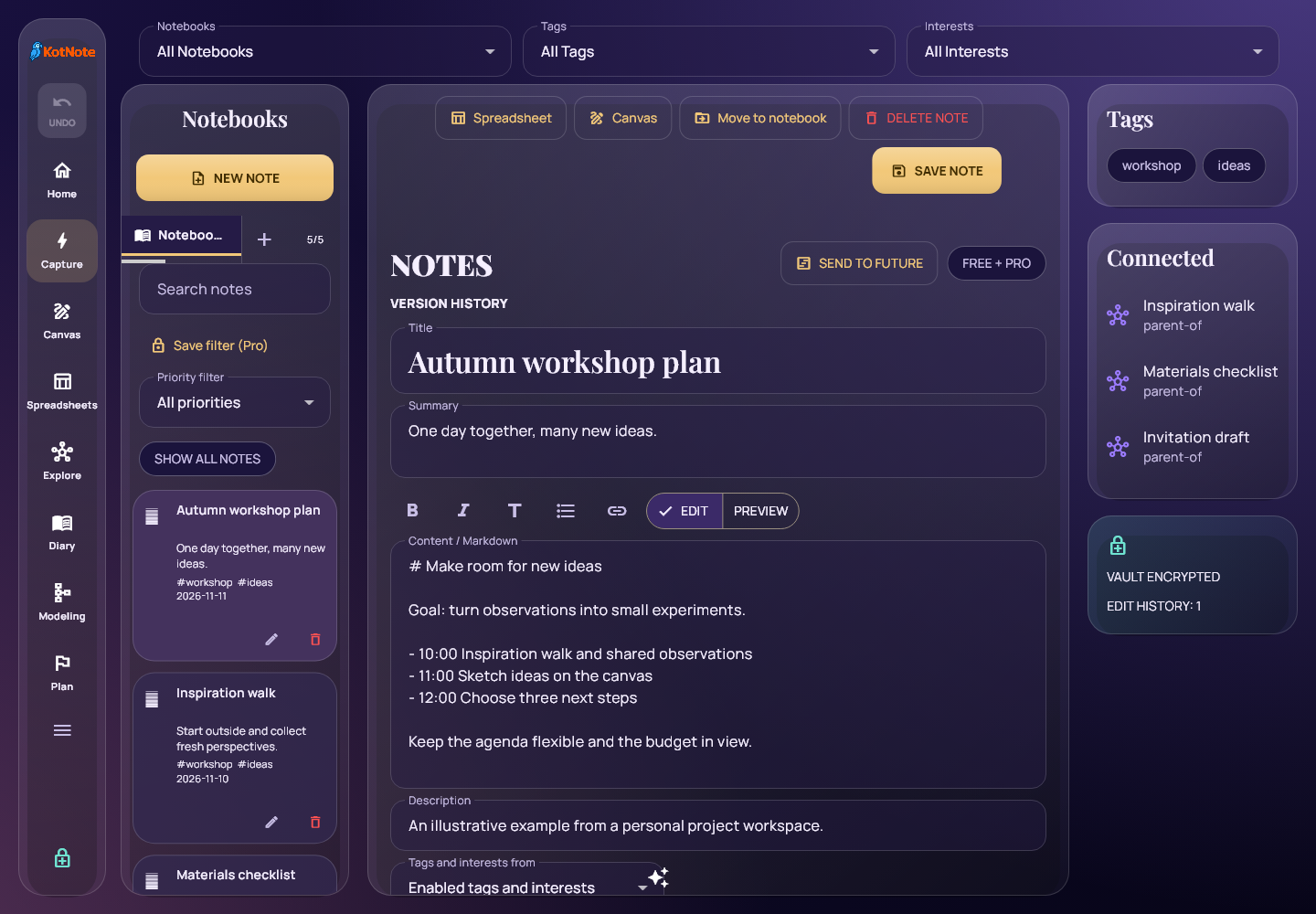
Notebooks give you named collections, and notes can move between them without becoming new copies. Tags add flexible labels across collections. Interests and hobbies provide another organizing dimension, with their own icons and defaults. Enable the vocabulary you use, create custom tags or Interests, or draw on a different profile’s suggested vocabulary. Normal is the starting priority, and the most recently used enabled Interest helps speed up repeated capture.
The shared Notebook, Tag and Interest filters work together across the node views. A single click selects an item and shows its main details; double-clicking opens it and updates its read and last-accessed state. Switching views keeps the same underlying information and selection, rather than creating a separate note for each presentation.
Diary and calendar: give each day a place
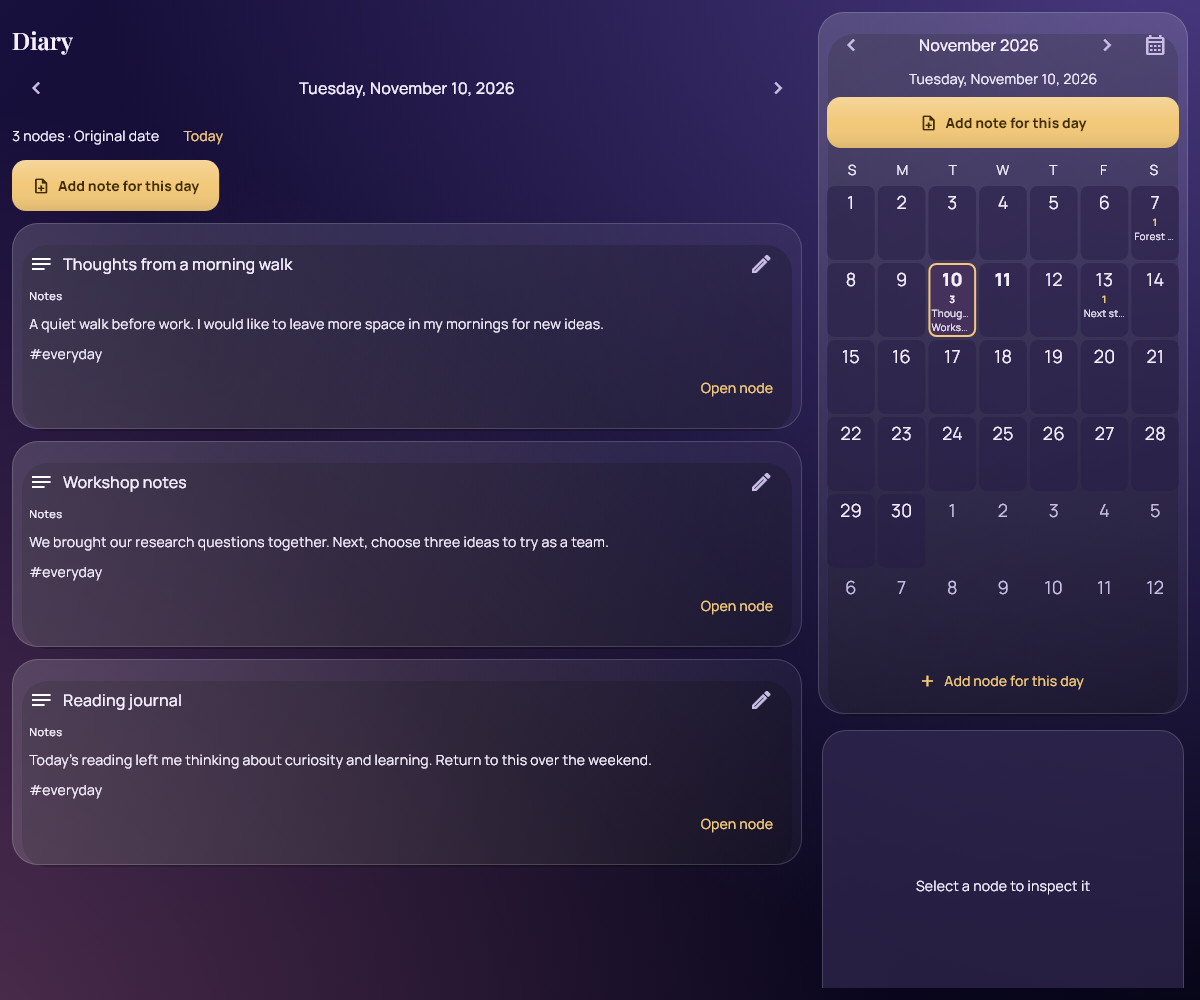
Diary places the selected day’s information beside a monthly calendar. Day counts and note-title previews help you find where something happened. Select a date to read its notes, edit an existing entry, or create a new note for that day.
An empty day is still a writing space: the diary offers a composer when no nodes match the day and active filters. Days that already contain notes also offer an Add note action. A new entry receives the selected calendar date, so you can record yesterday’s observations or prepare tomorrow’s agenda without correcting the date afterward. On narrow screens, the calendar and diary stack vertically.
Explore the same information from different angles
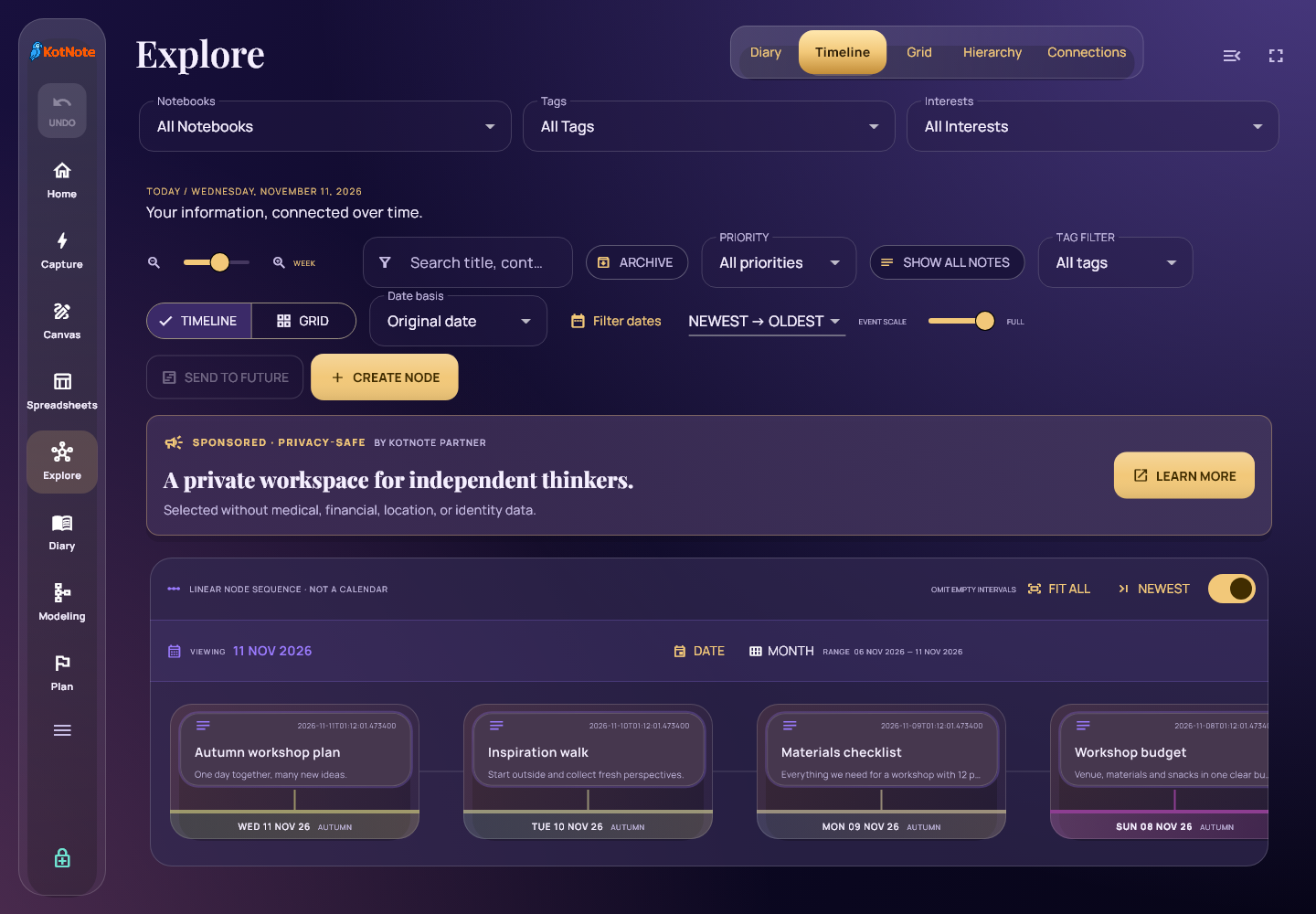
Timeline and Grid
Timeline arranges nodes chronologically, with controls for date ranges, scale, search and filtering. Use it to revisit the history of a project, browse journal entries or find imported material in its original chronological context. Selecting an item keeps it visible and highlighted. Grid provides a card-based alternative when scanning titles and summaries is more useful than following dates.
Connections and the Helicopter view
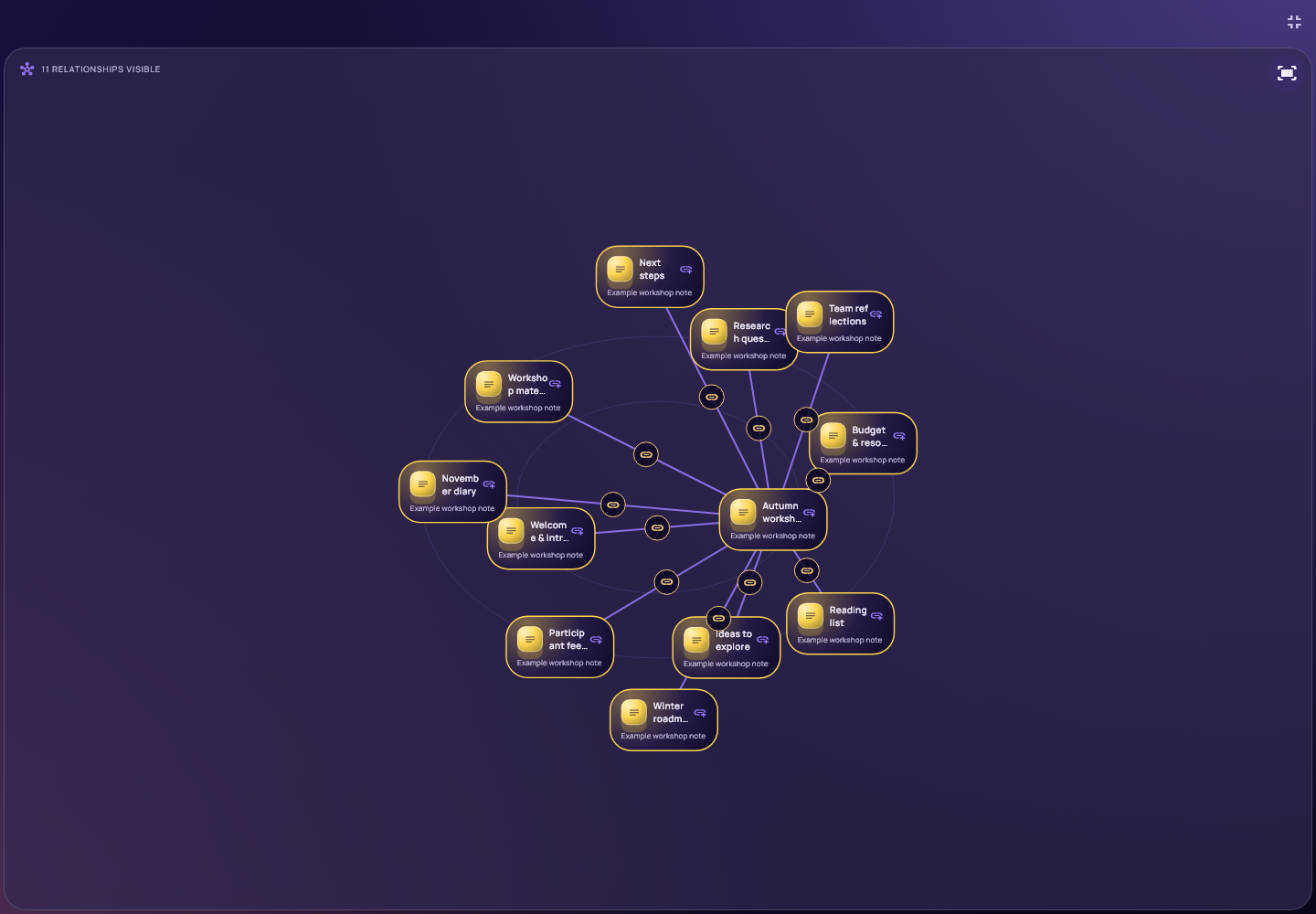
The Helicopter view makes connections visible. Explore relationships between nodes, shared tags and Interests, focus on a selected neighborhood, or narrow the graph with search and relationship filters. It is useful for seeing how an idea, source, plan and supporting material belong together.
Minimize menus and maximize Explore to give the graph more room. The Helicopter view fits the currently displayed nodes into the available screen area; restore the controls when you need them. Larger collections retain display limits and load-more controls to keep interaction responsive.
Hierarchy
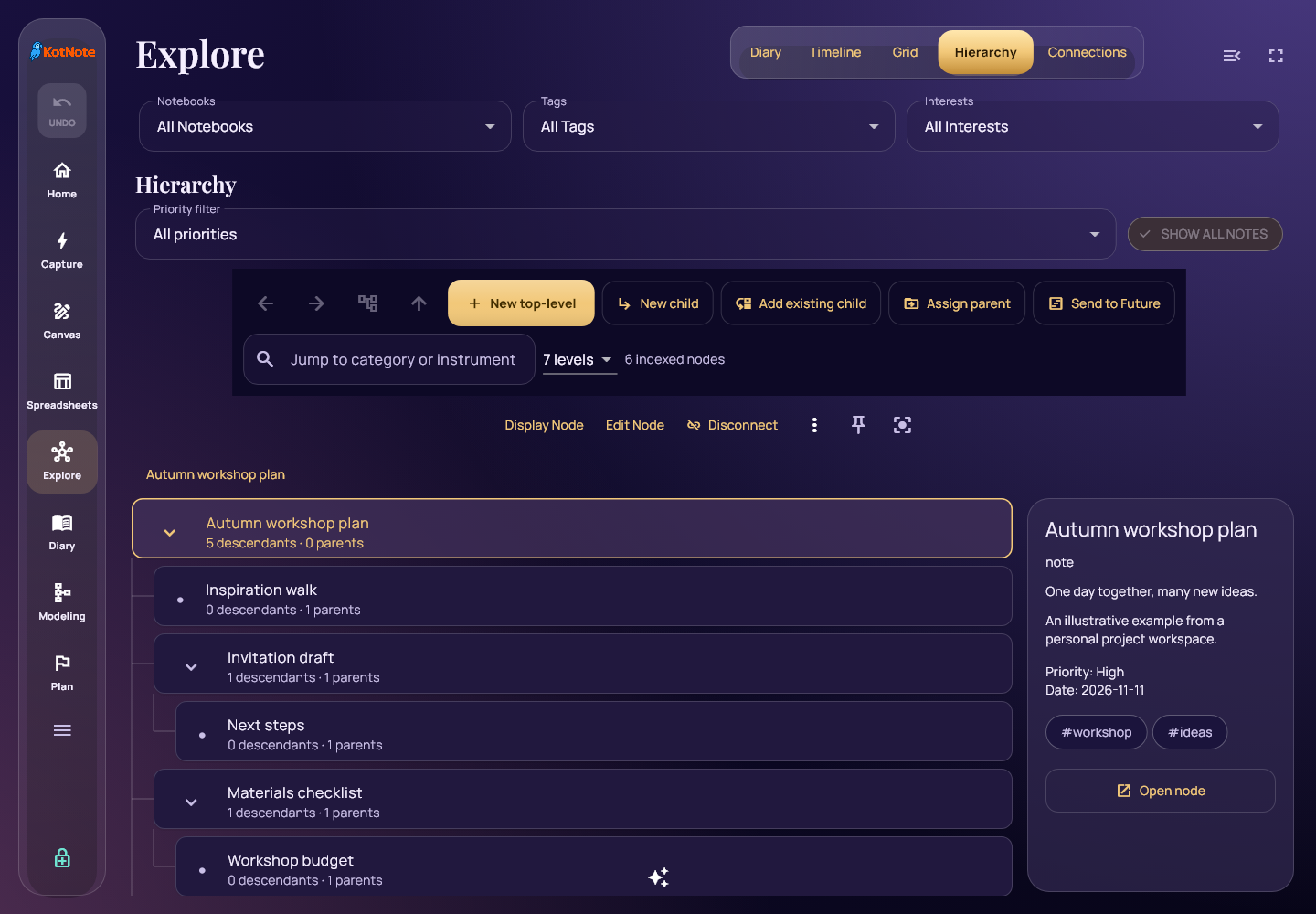
Hierarchy organizes information into expandable structures. Assign parents, browse branches, follow breadcrumbs, focus on a subtree or locate unparented items. Multiple-parent relationships support structures that are richer than a folder tree, while cycle checks prevent circular parent chains. Tools act on the selected node, and the detail panel keeps its context visible.
Find a useful working set
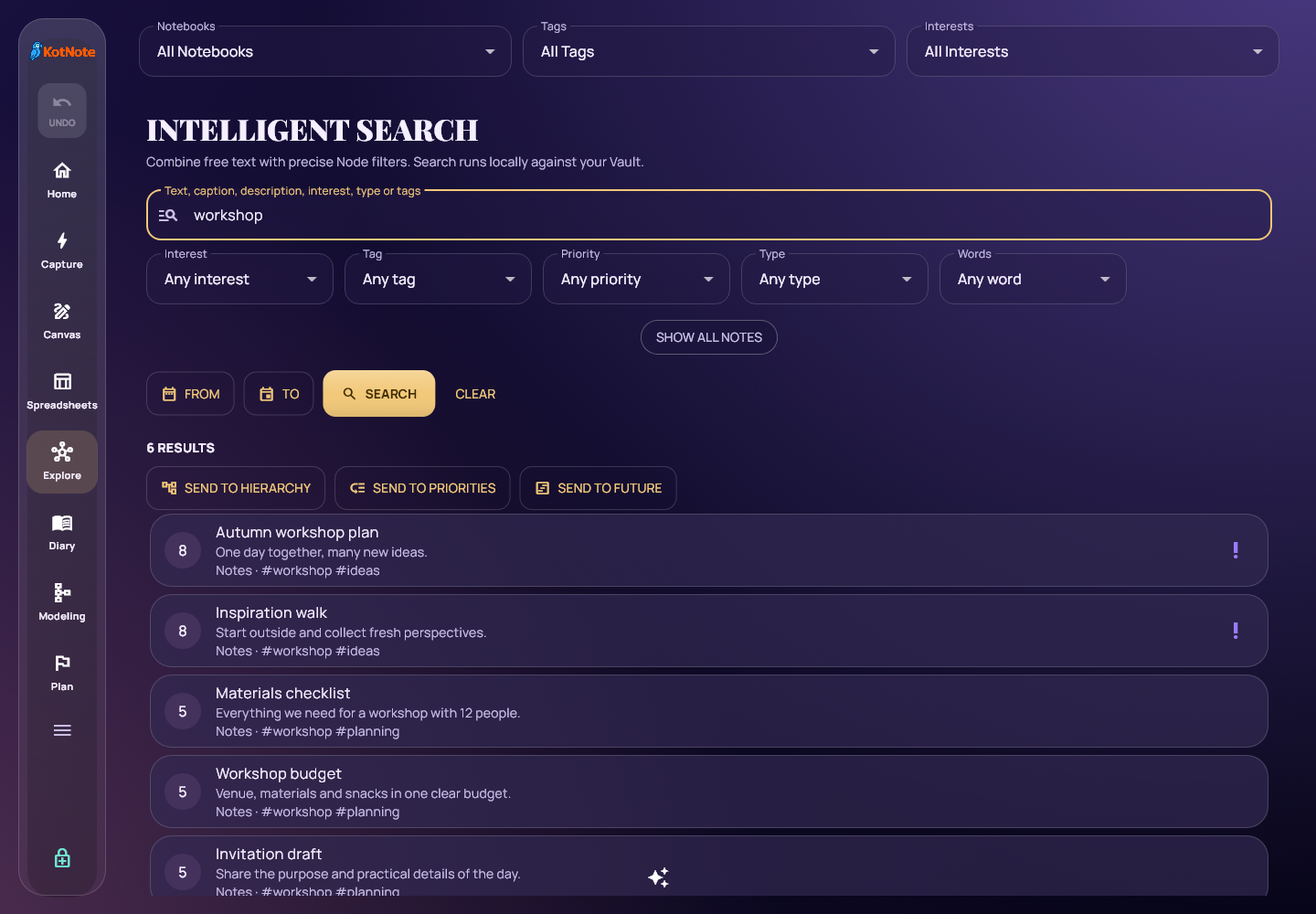
Intelligent Search combines text with Interest, tag, priority, item-type, word-matching and date criteria. Run Search to apply the chosen conditions, then open the original items from the results. This searches your KotNote collection; it is not an Internet search or an AI chat answer.
You can send a result set to Hierarchy, Priorities or Future to work with the information you found. Pro’s named saved filters preserve reusable search criteria, making it easier to return to a recurring question as the collection changes. Notebook filtering combines with the other active filters before the relevant view’s pagination or graph limits.
Turn knowledge into action
Priorities
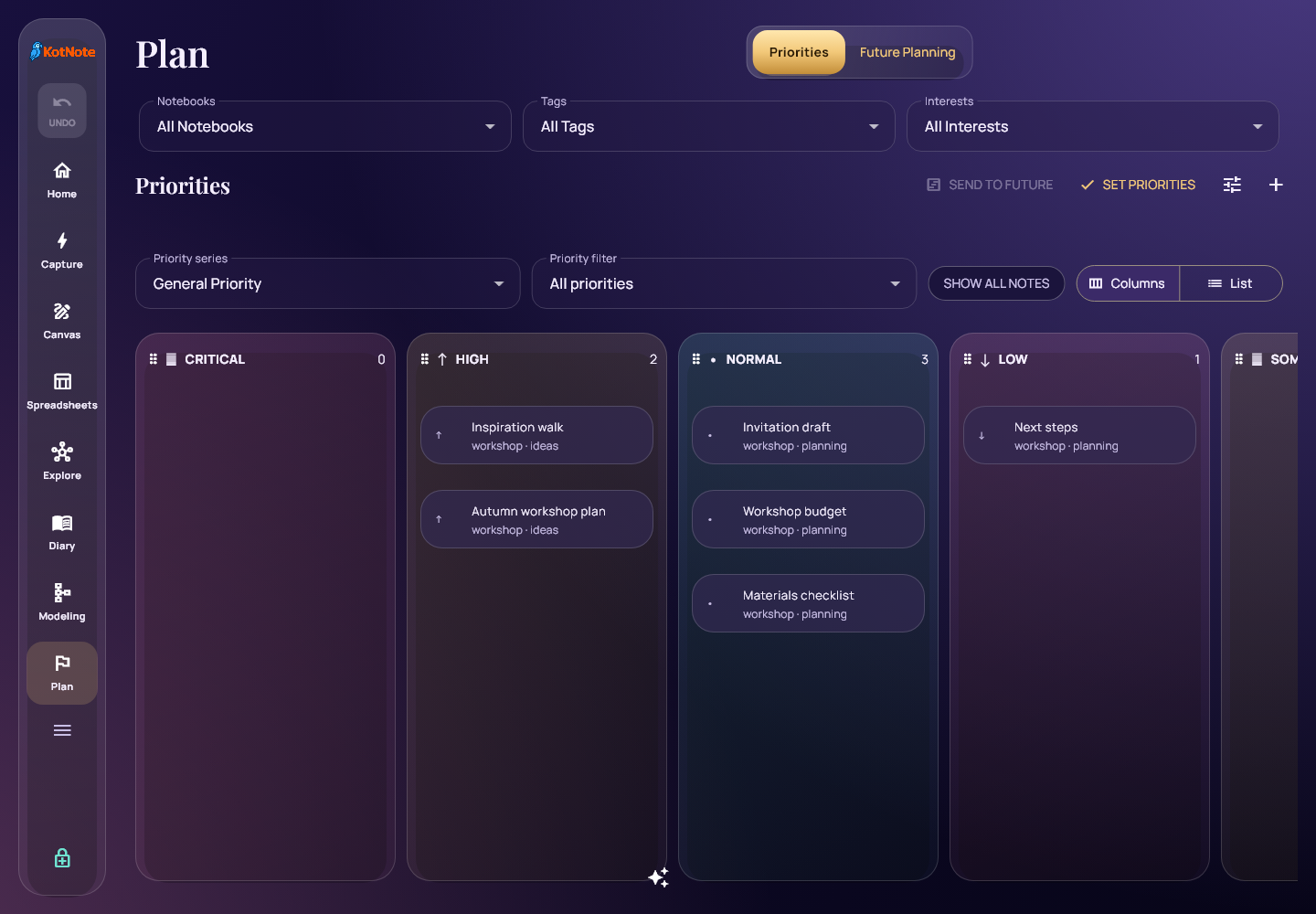
Priorities organizes nodes into configurable priority series and ordered levels. Use columns or a list, assign items to the appropriate level, and drag them into a useful order. Exclusive and overlapping series let you express different kinds of importance. Search results and selected knowledge can become a focused working set rather than another disconnected task list.
Future Planning
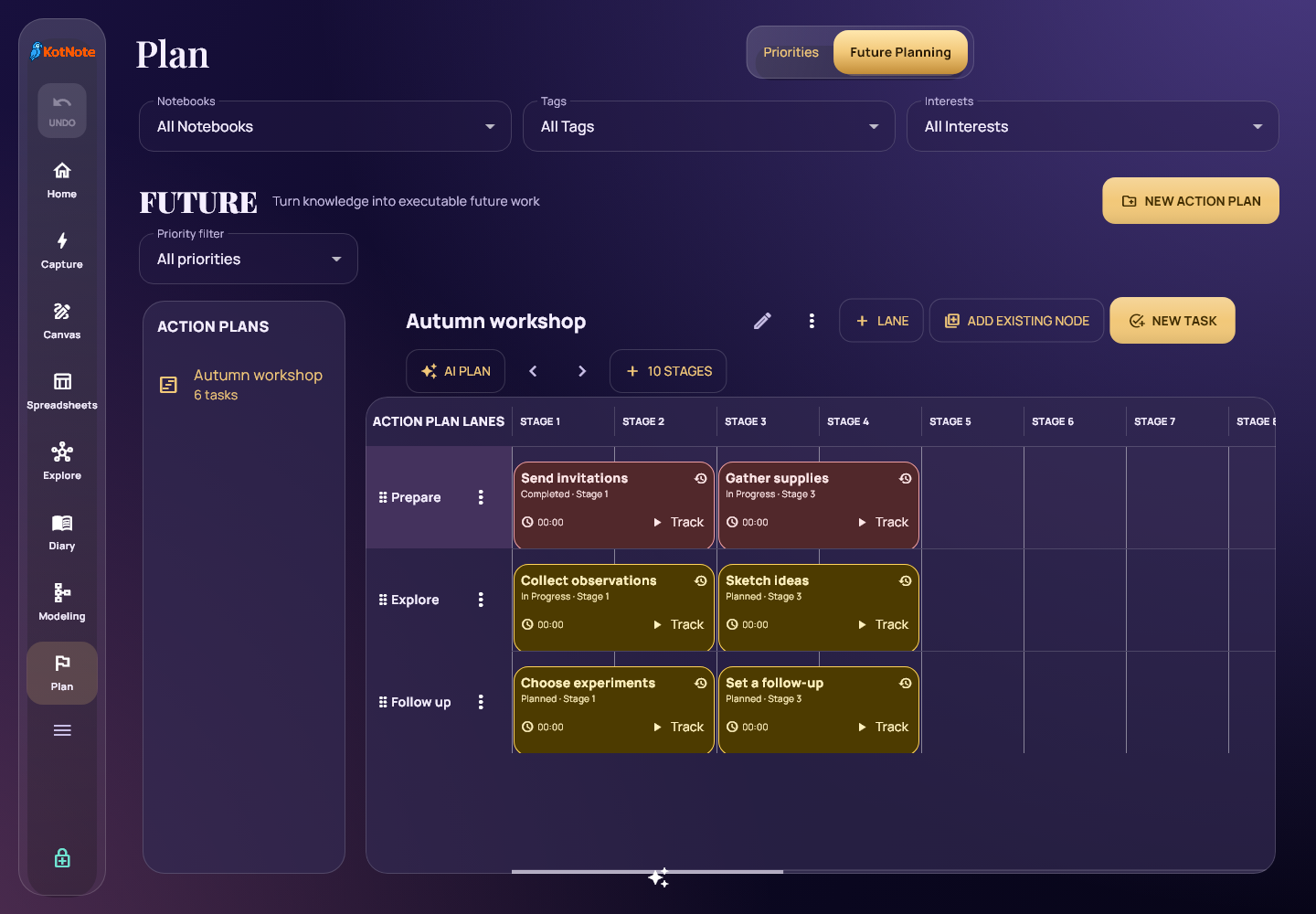
Future Planning turns information into Action Plans with lanes, tasks and relative stages. Add a new task or bring in an existing node while retaining a connection to its source. Move tasks between lanes and stage positions, edit their status and dependencies, and use the visual layout to decide what comes next.
Future uses relative stages rather than calendar dates. For dated project schedules, the Modeling workspace’s Roadmap provides a Gantt-style alternative.
Time tracking
Track work against existing nodes and Future tasks. The persistent timer lets you start with a recent task; switching tasks stops one entry and starts the next. Review Today, Week, Month or a custom range, with totals grouped by Interest and task. Add manual entries, correct times, change the linked task or add a description. Time entries use the same encrypted storage and synchronization path as other Vault information.
Infinite Canvas: think beyond page margins
Canvas is a free-form whiteboard that expands as you work. Pan and zoom around a board, type text, draw with a mouse or supported stylus, and combine lines, shapes, colors and images. Move and resize objects to arrange a sketch, mood board, visual explanation or meeting plan.
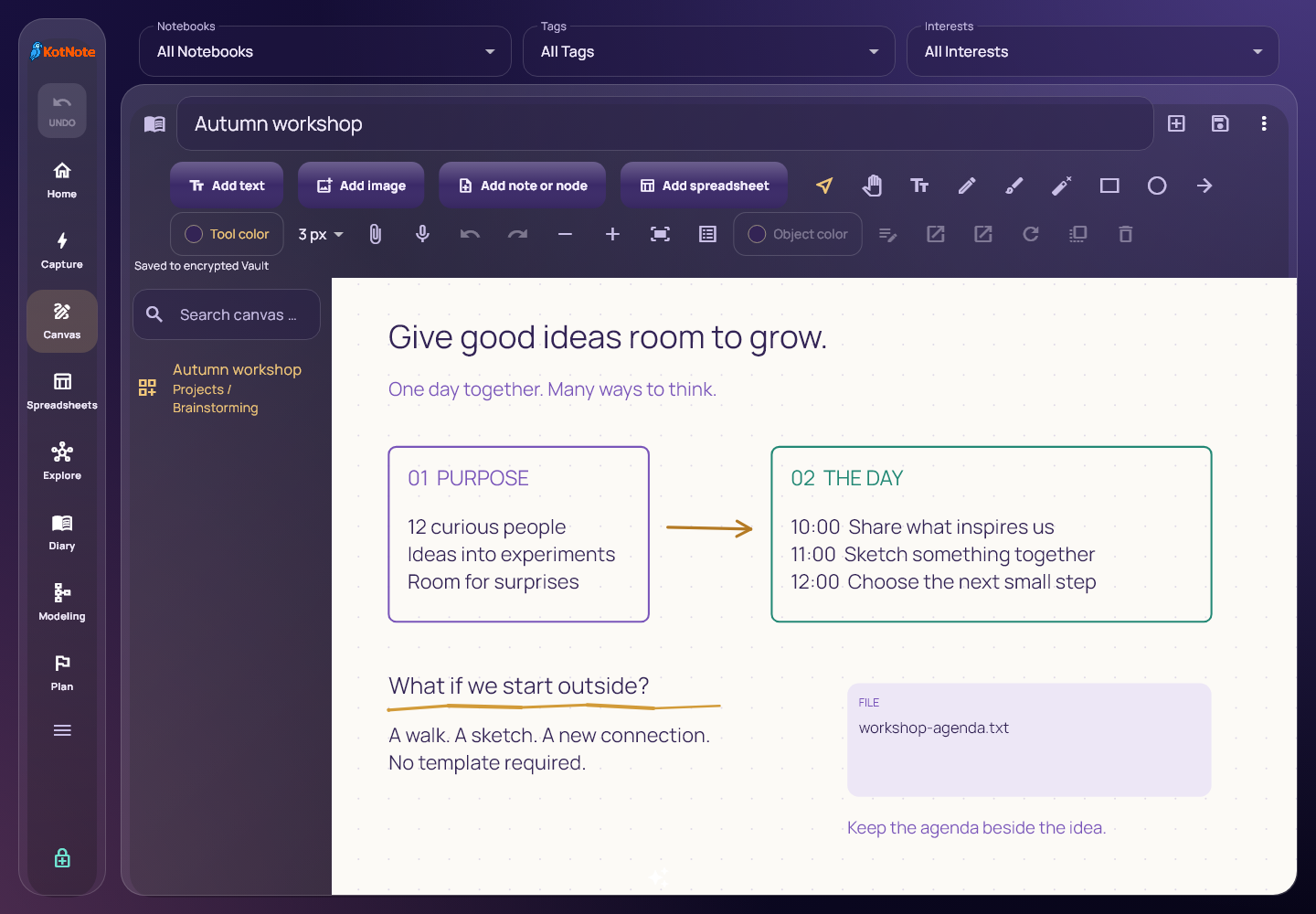
Insert existing notes as linked cards and open the original information from the board. Add a saved spreadsheet as a compact preview card, with a manual refresh when its values change. These are references and previews: removing a linked card does not delete its original note or spreadsheet, and spreadsheet cells are edited in their own editor.
The toolbar includes drawing and text colors, shape tools, object controls, Undo and Redo. Canvas saves through the encrypted Vault. Export a PNG for sharing or editable JSON for interchange. Boards can also be removed through a confirmed delete action.
Two ways to work with structured information
Lightweight spreadsheets
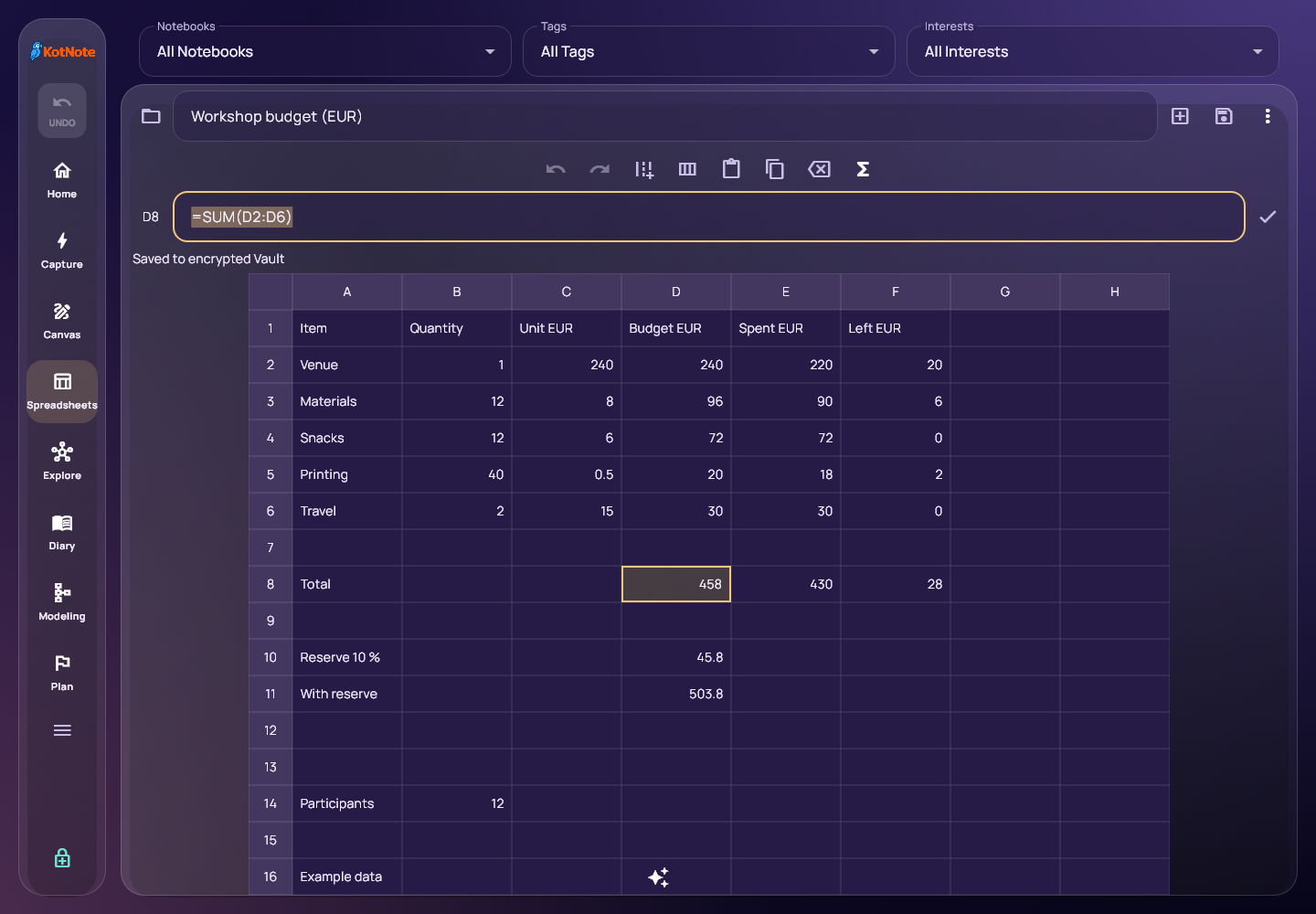
Use the spreadsheet editor for budgets, lists and everyday calculations. Enter text, numbers and formulas; work with cell references and ranges; and calculate with arithmetic plus SUM, AVERAGE, MIN, MAX and COUNT. Keyboard navigation, rectangular clipboard paste, Undo and Redo make small tables practical to maintain.
Import CSV as a new sheet and export calculated values to CSV. The editor saves through KotNote and can supply a preview card for Canvas. This is a compact spreadsheet, not a full Excel replacement; Excel workbook interchange belongs to portfolio tables.
Tables and portfolios
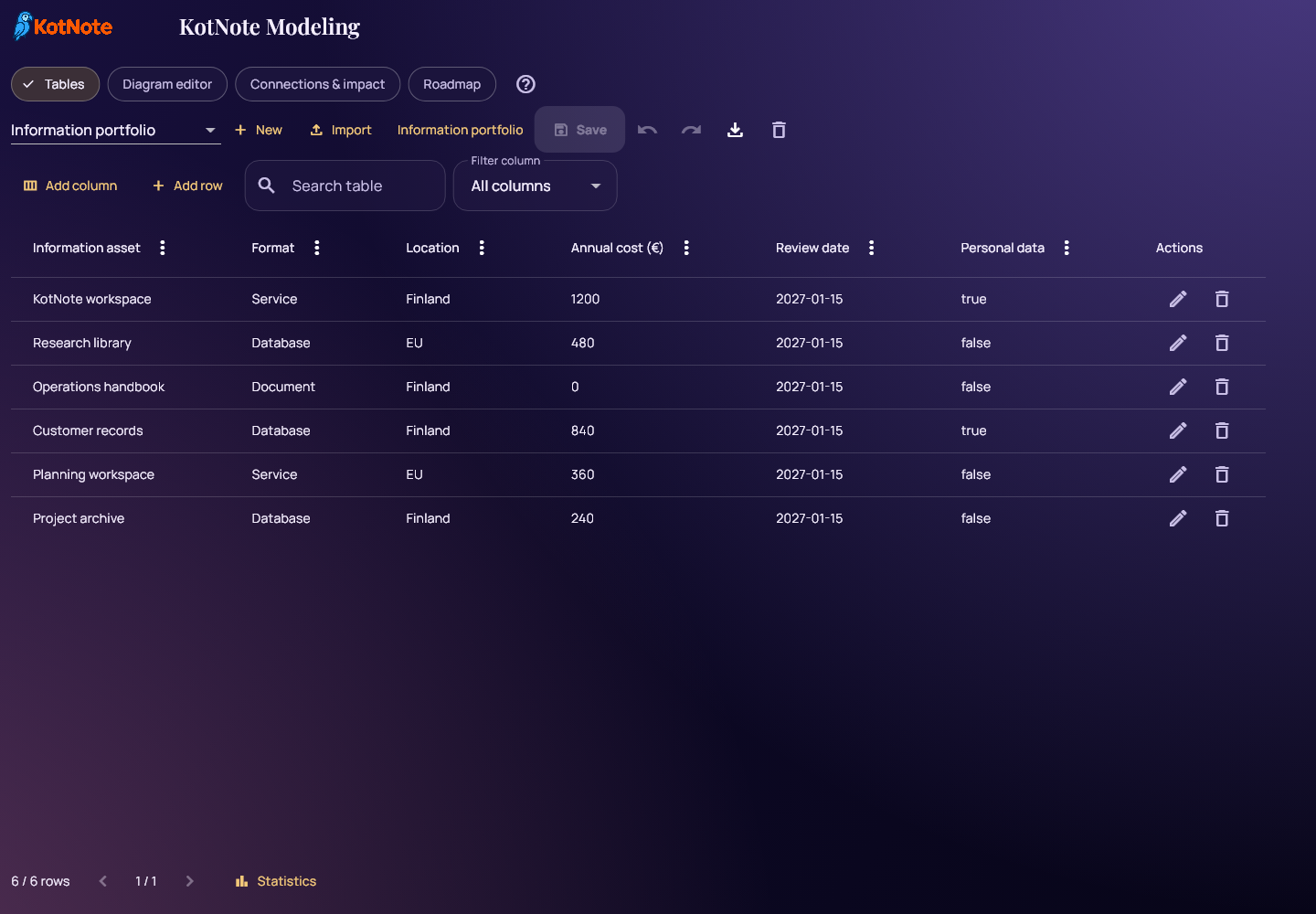
Modeling’s Tables organize collections with typed columns: text, numbers, dates, yes/no values, categories, URLs and references to existing nodes. Build an inventory, compare systems or describe project resources. Edit cells and rows, search, filter and sort, then inspect numeric totals or category distributions for the filtered results.
The latest browser update brings a newly added row into view automatically, opening the correct page and highlighting it. Filters that still match the new row stay active; criteria that would hide it are cleared with a notice.
Import and export real XLSX workbooks, choosing the worksheet during import. KotNote’s own exports preserve column types and row identities for round trips. Imported formula cells use their saved values; macros, rich workbook layouts and Excel formula execution are outside this feature.
Model systems, relationships and change
Diagram editor
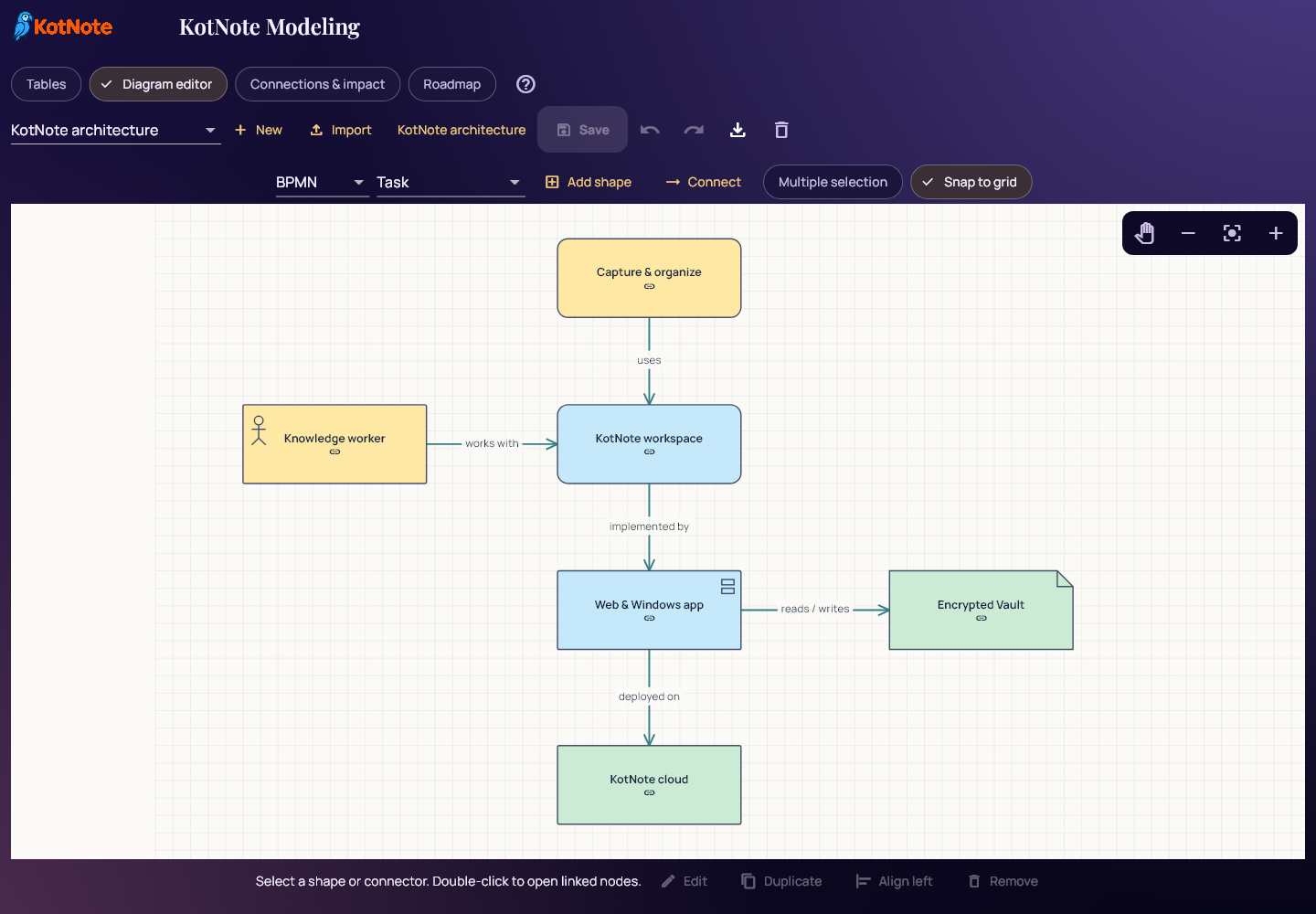
Create visual diagrams with palettes for BPMN, ArchiMate, UML, ER and Lean VSM. Add shapes and labeled connectors, drag and resize elements, choose colors, align selections, snap to a grid, and pan or fit the diagram. Shapes can link directly to KotNote nodes so the drawing connects to the information behind it.
Import basic geometry and relationships from Draw.io, Visio VSDX or Visio XML VDX, with a preview. Export editable KotNote JSON, a static SVG, or a basic editable Draw.io representation. Specialized stencils can be simplified during interchange. The palettes support visual modeling; they do not execute business processes or validate complete modeling standards.
Connections and impact
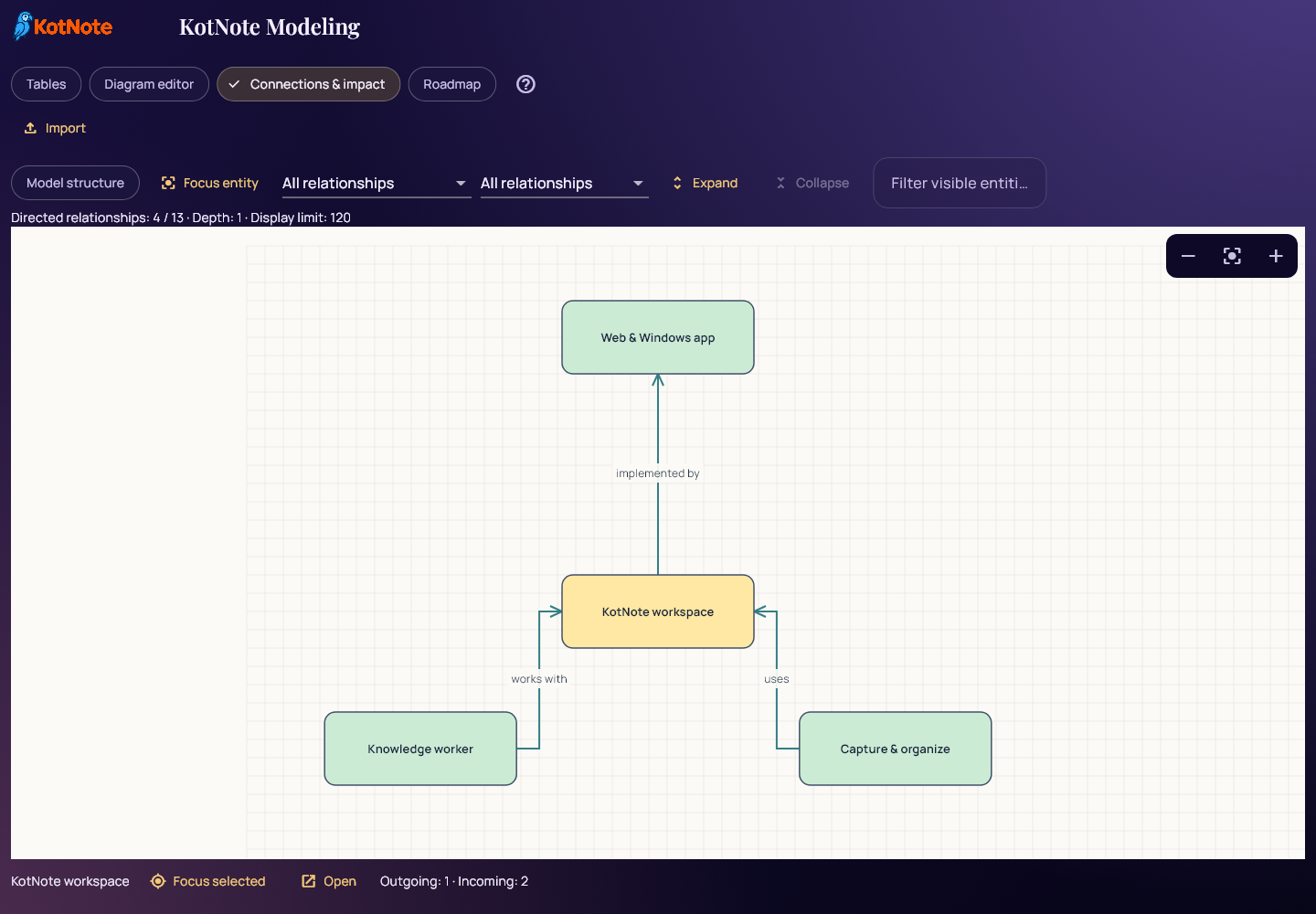
The Modeling connection view focuses on directed relationships and dependencies. Select an entity, expand its neighborhood and filter the relationship types to examine what uses it, what depends on it and what a change could affect. Linked nodes keep the model connected to the wider collection.
Roadmap
Roadmap lays out projects, phases, actions and milestones on a dated Gantt timeline. Move or resize schedule bars, track progress, connect dependencies and describe scenarios, current states, target states and acceptance. It gives long-term plans a visible sequence while retaining links to the supporting information.
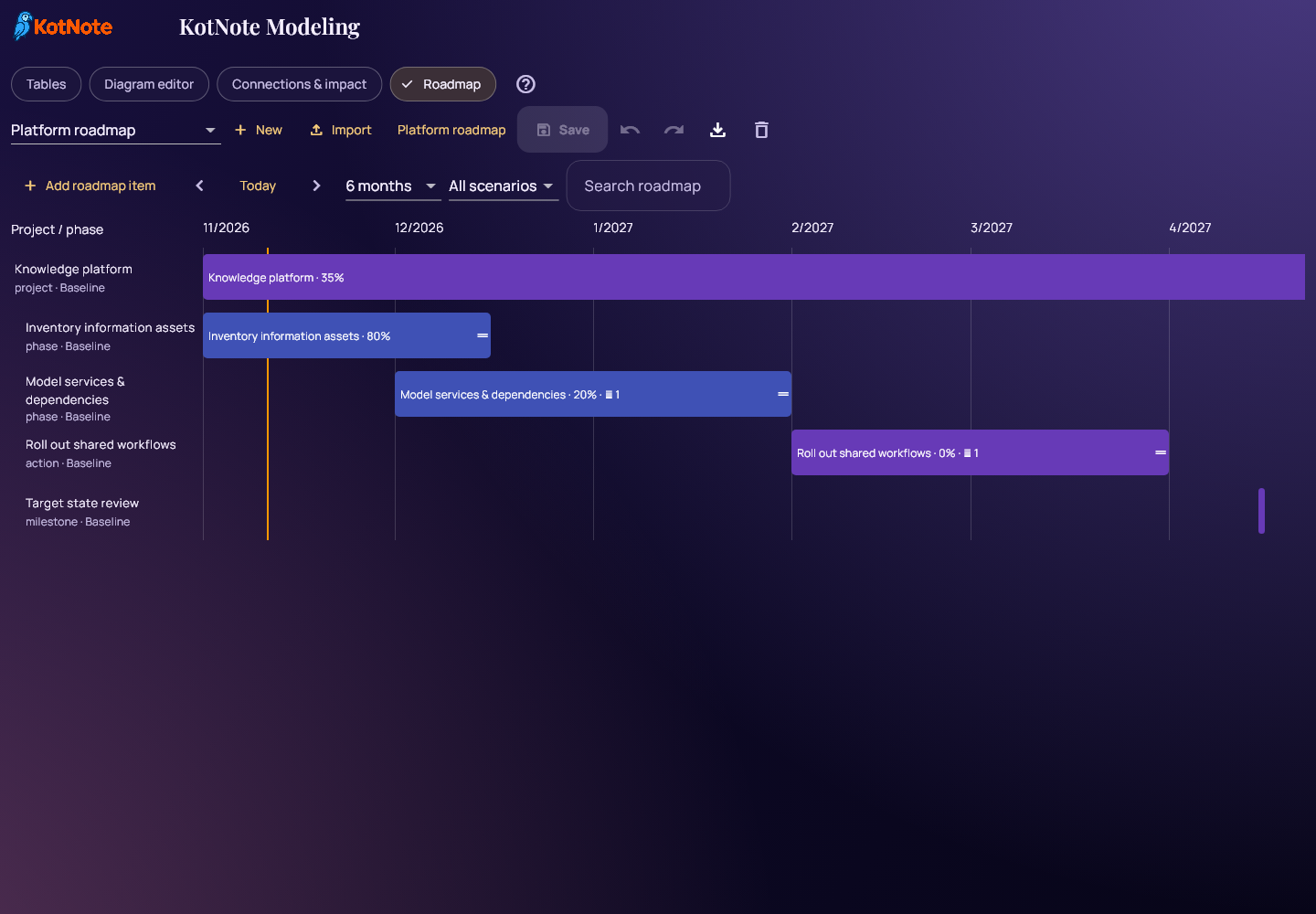
Tables, diagrams and roadmaps are saved as encrypted KotNote nodes. Use Save before closing or refreshing a modeling editor; its unsaved working copy belongs to the current editing session. JSON provides the complete editable model export.
Bring existing information into KotNote
Web Clipper
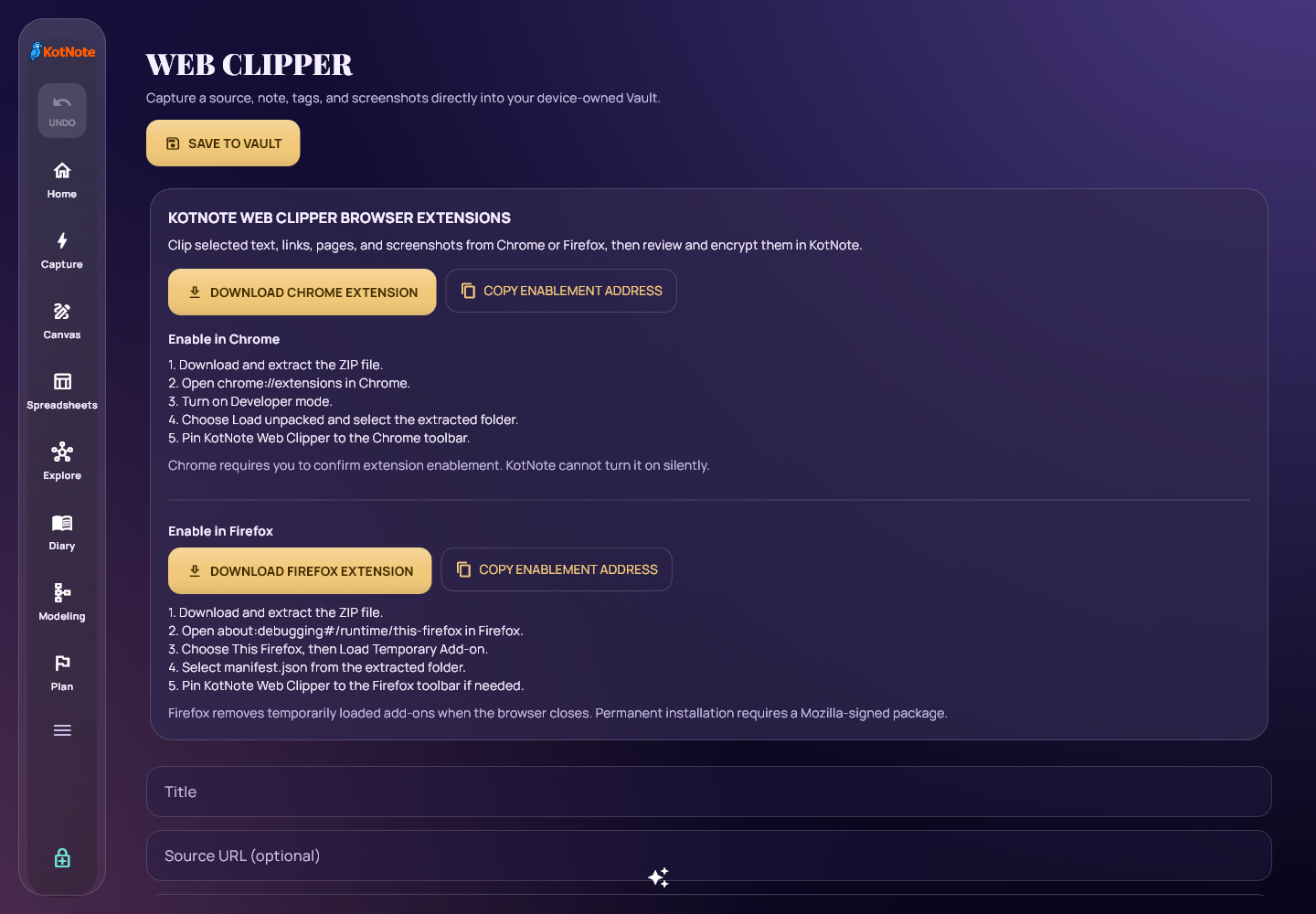
The Chrome and Firefox Web Clipper extensions capture selected text, article or page text, source URLs, visible screenshots and selected screen areas. Send a clip to KotNote, review its title, text, tags and images, and then save it to the encrypted Vault. The in-app Web Clipper includes extension downloads and installation instructions, as well as a place to review a clip before committing it.
Files, folders and metadata
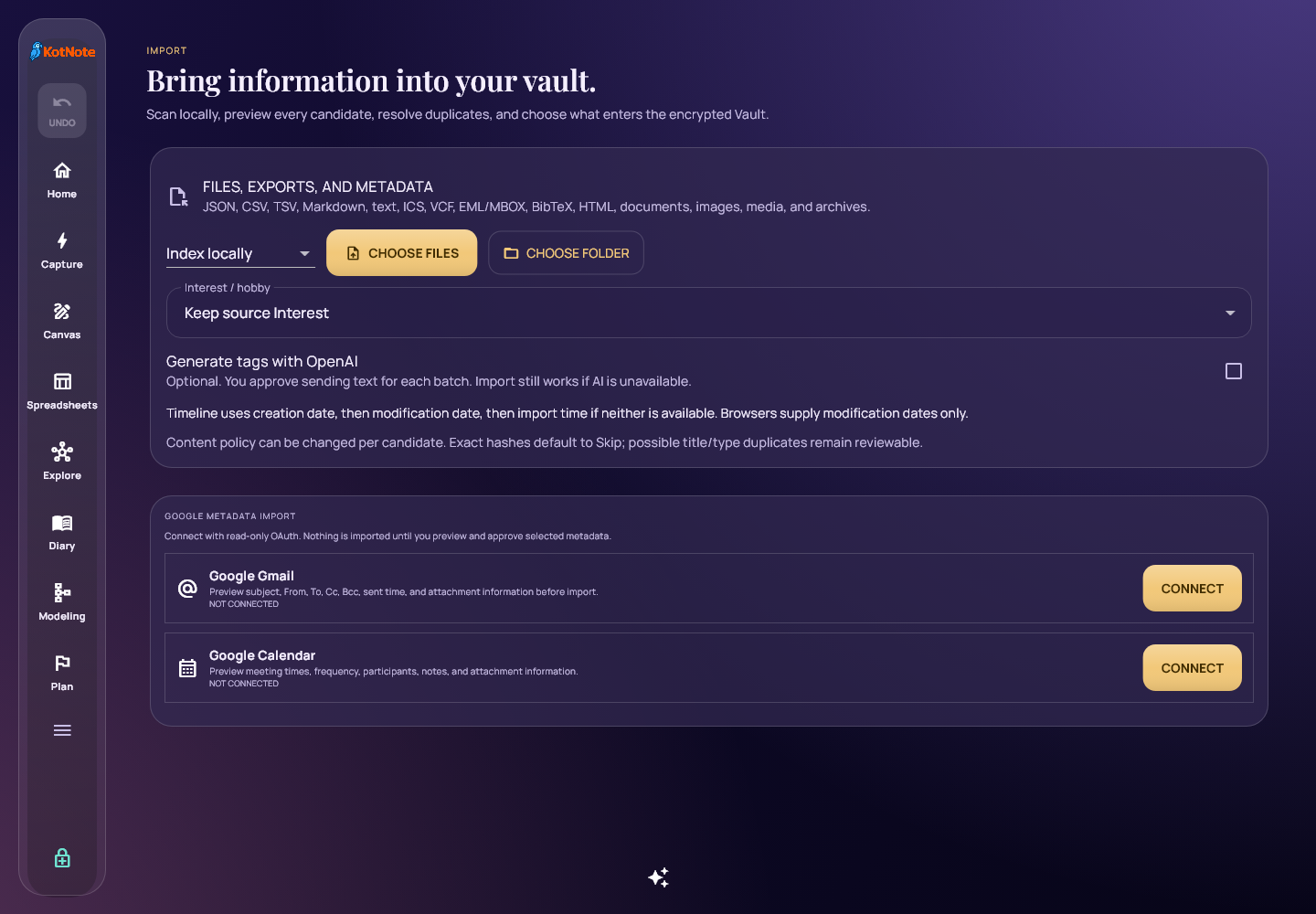
Import supports files and folders across structured exports, Markdown and text, calendar and contact formats, email archives, BibTeX, HTML, documents, images, media and archives. The preview shows candidate items, warnings and available duplicate-handling choices. Extraction depth varies by format; some files supply readable text while others are retained as attachments or metadata. Review and choose the items to keep before completing the import.
Select an Interest for the batch before importing. Timeline uses the source creation date when available, otherwise modification time, and finally import time if neither exists. Browsers normally provide modification time only. The separate Imported timestamp records when the material entered KotNote. Imported nodes become available in the relevant views without first expanding the Helicopter graph.
Google sources
Where the connection is configured, Import offers Google Gmail and Calendar sources through read-only OAuth. Connecting a source does not import everything automatically: preview the available metadata and approve the selected items. Provider permissions and account configuration determine availability.
Optional AI assistance, with review
KotNote’s OpenAI note assistance can suggest a summary, a description or tags from the note you choose. A request asks for consent to send the relevant text. Review the returned suggestion, edit it if needed, and decide what to apply. Summary and description actions update those fields rather than replacing the main note. Save the note normally afterward.
During import, optional AI tagging asks for approval for each batch. The selected Interest and imported files are saved independently of the tagging outcome: a provider failure should not prevent the file import. The UI reports import and tagging results separately. AI availability depends on the configured service; ordinary writing, organizing and file import remain useful without it.
Make the workspace yours
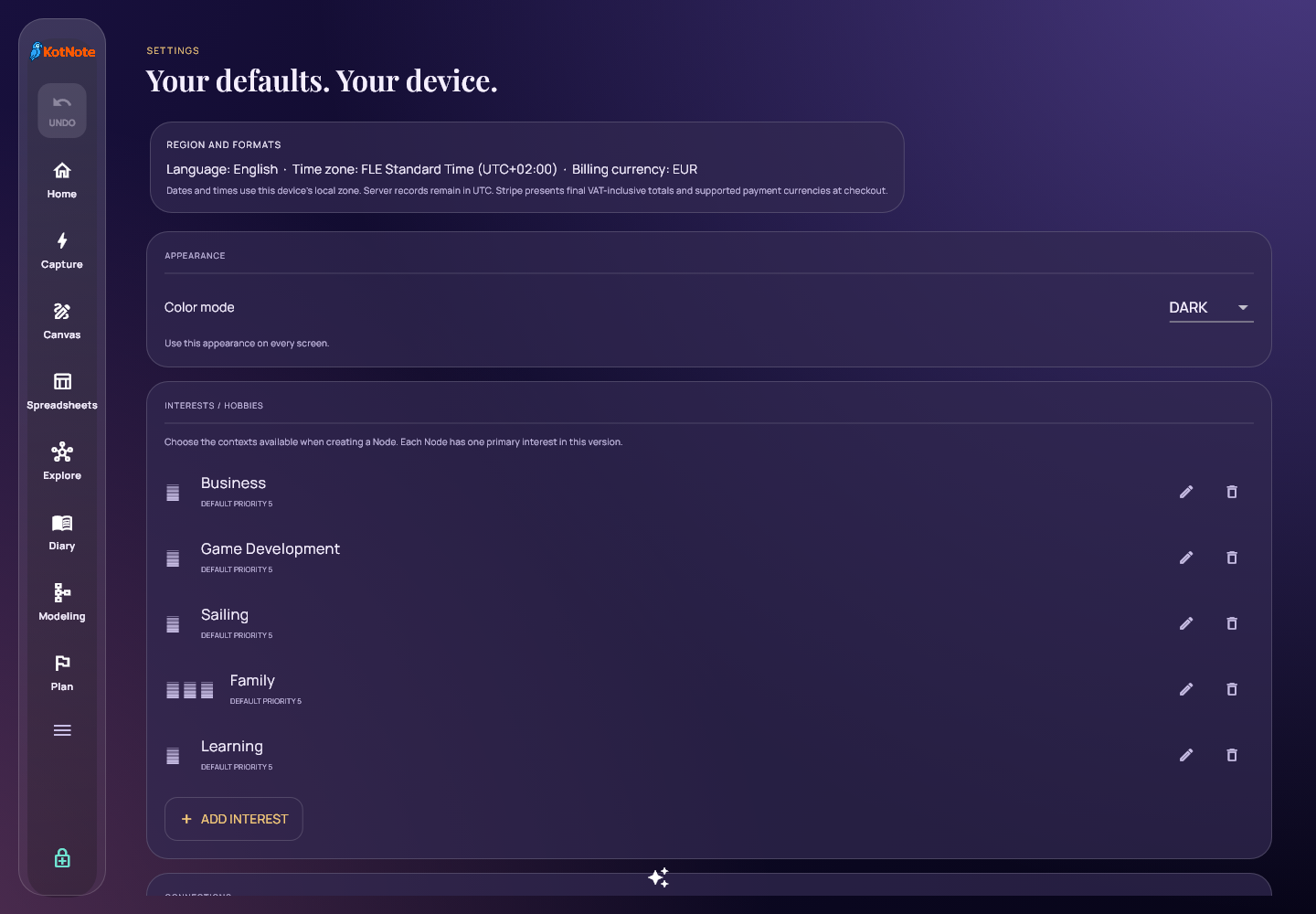
Choose English or Finnish, light or dark appearance, a system-following theme and a custom accent. Set date, time, number and currency preferences. Profiles supply suggested tags, Interests and icons for contexts such as personal knowledge, research, study, entrepreneurship and hobbies. You can adapt that vocabulary without creating separate copies of your information.
Encrypted storage, synchronization and portability
KotNote encrypts Vault records and attachments on the client before synchronization. Saved local edits and the synchronization queue help you continue working through a connection interruption; the app distinguishes saved local data from a failed sync and provides retry controls. Account and service metadata are separate from encrypted note content. Sending selected text to an AI provider is a separate, explicit action.
Settings include lock and automatic-lock controls, synchronization preferences, and backup or owned-device transfer controls where supported. Feature-specific exports let you take information out as CSV, XLSX, JSON, PNG, SVG or Draw.io files, depending on the editor. Exported sharing files are readable outside the Vault, so choose their destination accordingly.
Accounts, invitations and plans
Registration, sign-in and email verification establish your account. Invite Friends provides invitation and reward progress. The subscription screen presents Free, Plus, Pro and Enterprise options; check the current plan details for notebook allowances and paid features such as named saved filters. Authorized administrators have a separate account-management panel for searching users, reviewing account status and resending verification.
Web and Windows
Use KotNote in a browser on a desktop or mobile device, or download the portable Windows x86-64 application. Both use the production account and encrypted synchronization workflow. Responsive layouts, collapsible navigation and maximized Explore give the information more space on smaller screens. Device permissions determine which camera, capture and dictation actions are available.
Start with one note, then choose the view that helps you work with it. Open KotNote, visit the download page, or explore the KotNote website.